

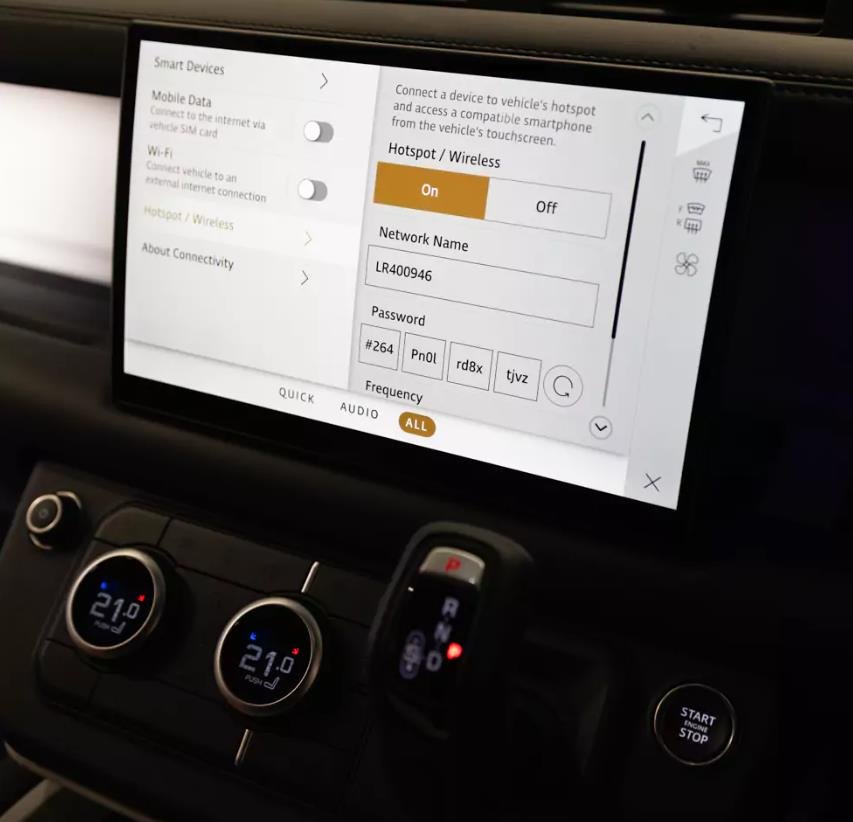


Technical Configuration of the JLR Wi-Fi Hotspot Wireless via CCF Editing
For the professional JLR technician, advanced competency with the JLR Engineering Tool (JET) and Car Configuration File (CCF) editing is essential for enabling modern connected vehicle features. This expertise is critical for addressing the growing demand for in-vehicle connectivity. A common task is the activation of the JLR Wi-Fi Hotspot Wireless system, a feature often requested by clients whose vehicles possess the hardware but lack the software enablement. This process solves the problem of a missing or inoperative hotspot menu, allowing the vehicle to function as a mobile wireless access point.
Technical Architecture of the JLR Wi-Fi Hotspot
The JLR Wi-Fi Hotspot Wireless system is a dual-network solution that bridges cellular and local wireless networks. Its operation is managed by the vehicle's Telematics Control Unit (TCU), a gateway module responsible for external communication.
System Logic and Network Integration
The TCU contains an integrated 4G/LTE modem and a dual-band Wi-Fi radio. When active, the modem establishes a data connection with a mobile network operator. The Wi-Fi radio then creates a secure, password-protected 2.4GHz or 5GHz network inside the vehicle. The CCF parameters control the feature's availability and initial configuration. Key CCF switches reside in both the TCU and the Infotainment system, enabling the access point functionality and presenting the management interface (SSID and password setup) to the user via the Pivi Pro touchscreen. The system provides Network Address Translation (NAT), allowing multiple client devices to share the single cellular data connection.
Hypothetical Step-by-Step Process for Activation
Disclaimer: This is a generalized procedural outline. Always consult official JLR technical documentation for vehicle-specific instructions. A valid data plan is required for full functionality.
- Pre-Programming Hardware Verification: Connect a DOIP VCI to the vehicle. Perform a network scan to confirm the presence and health of a 4G/LTE-capable TCU. Check for any existing DTCs related to telematics or antenna systems.
- JET Session Establishment: Log in to the TOPIx cloud platform with a valid subscription. Launch JET, input the VIN, and establish a secure diagnostic session.
- Mandatory CCF Backup: Before any modification, use JET to read and save a complete backup of the vehicle's original CCF.
- Coordinated Configuration Editing: Navigate the CCF tree. Critical edits are required in two primary locations:
- Telematics Control Unit (TCU): Enable parameters for “Wi-Fi Hotspot,” “Internal Wi-Fi Antenna,” and data connection settings.
- Infotainment Head Unit (HU): Enable the “Wi-Fi Hotspot” menu and user interface controls to allow SSID and password configuration.
- Write and Validate Configuration: Write the modified CCF blocks back to their respective modules. Confirm successful programming for both the TCU and the Head Unit.
- Module Reset and Network Registration: Initiate a TCU reset through JET's guided functions. The vehicle must then be placed in an area with strong cellular reception. The TCU may take several minutes to register on the mobile network and establish its first data connection.
- Functional Verification and Subscription Check: Navigate to the “Settings” & “Connections” menu on the Pivi Pro screen. Verify the Wi-Fi Hotspot menu is present. Attempt to turn on the hotspot and configure an SSID/password. If the hotspot activates but has no internet, the data subscription must be activated via the owner's JLR InControl account.
Essential Toolkit for Wi-Fi Hotspot Programming
This procedure requires reliable, professional-grade equipment.
- DOIP VCI: A high-quality Vehicle Communication Interface supporting Diagnostics over Internet Protocol is essential for communicating with the telematics and infotainment modules over the vehicle's Ethernet network.
- Stable Power Supply: A professional battery maintainer is recommended. The TCU registration process can be lengthy, and stable voltage is required throughout.
- JLR Software Access: An active JLR subscription for TOPIx and the JLR Engineering Tool (JET) is mandatory for CCF editing and module configuration.
- Dedicated Programming Hardware: For a reliable and streamlined process, technicians should utilize the specialized JLR Wi-Fi Hotspot Wireless configuration tool from TOPIx Cloud.
Common Challenges and Technical Resolution
Technicians may encounter several specific issues:
- Hotspot Menu Missing After Coding: This indicates an incomplete CCF edit. The Infotainment Head Unit configuration is often overlooked. Both the TCU and the HU must have their respective CCF parameters enabled.
- “No Network Coverage” or “Subscription Inactive”: The CCF edit is successful, but the cellular data plan is not active. Guide the customer to check their JLR InControl account or contact JLR customer service to activate or renew the data subscription.
- Poor Hotspot Signal Strength: This is typically a hardware issue. Check for faults related to the internal Wi-Fi antenna, often integrated into the TCU or a separate module. Physical inspection of antenna connections may be necessary.
- TCU Fails to Register on Network: After programming, the TCU may require a full power cycle (disconnecting the vehicle battery for a few minutes) to force a fresh network registration. Ensure the vehicle is in an area with strong cellular signal during this process.
Conclusion
Activating the JLR Wi-Fi Hotspot Wireless is a clear demonstration of integrated systems knowledge, requiring coordinated CCF editing across multiple vehicle modules. Success hinges on a methodical approach, the use of professional tools like a DOIP VCI, and a clear understanding that software activation is distinct from cellular service provisioning. Technicians must be prepared to guide customers through the subsequent step of data plan activation to deliver a fully functional feature.
For technicians and workshops specializing in advanced JLR diagnostic programming and connected car JLR OEM retrofits, accessing reliable tools and expert support is crucial. For more information on specialized equipment and professional guidance, visit jlrupgrades.com.



Reviews
There are no reviews yet.